> ## Documentation Index
> Fetch the complete documentation index at: https://docs.filecheck.io/docs/llms.txt
> Use this file to discover all available pages before exploring further.
# Jobs & output
> Every file run produces a Job. Where to find results, and how to run a one-off preflight, validation, or optimization.
A **Job** is one run of a file (or set of files) through preflight, validation, or optimization. Most jobs are created automatically when a customer's upload flows through a [Workflow](/configuration/workflows), but you can also create one by hand. Each job records its **type** (preflight / validation / optimize), its **result**, and the output files.
 ## Reading a job
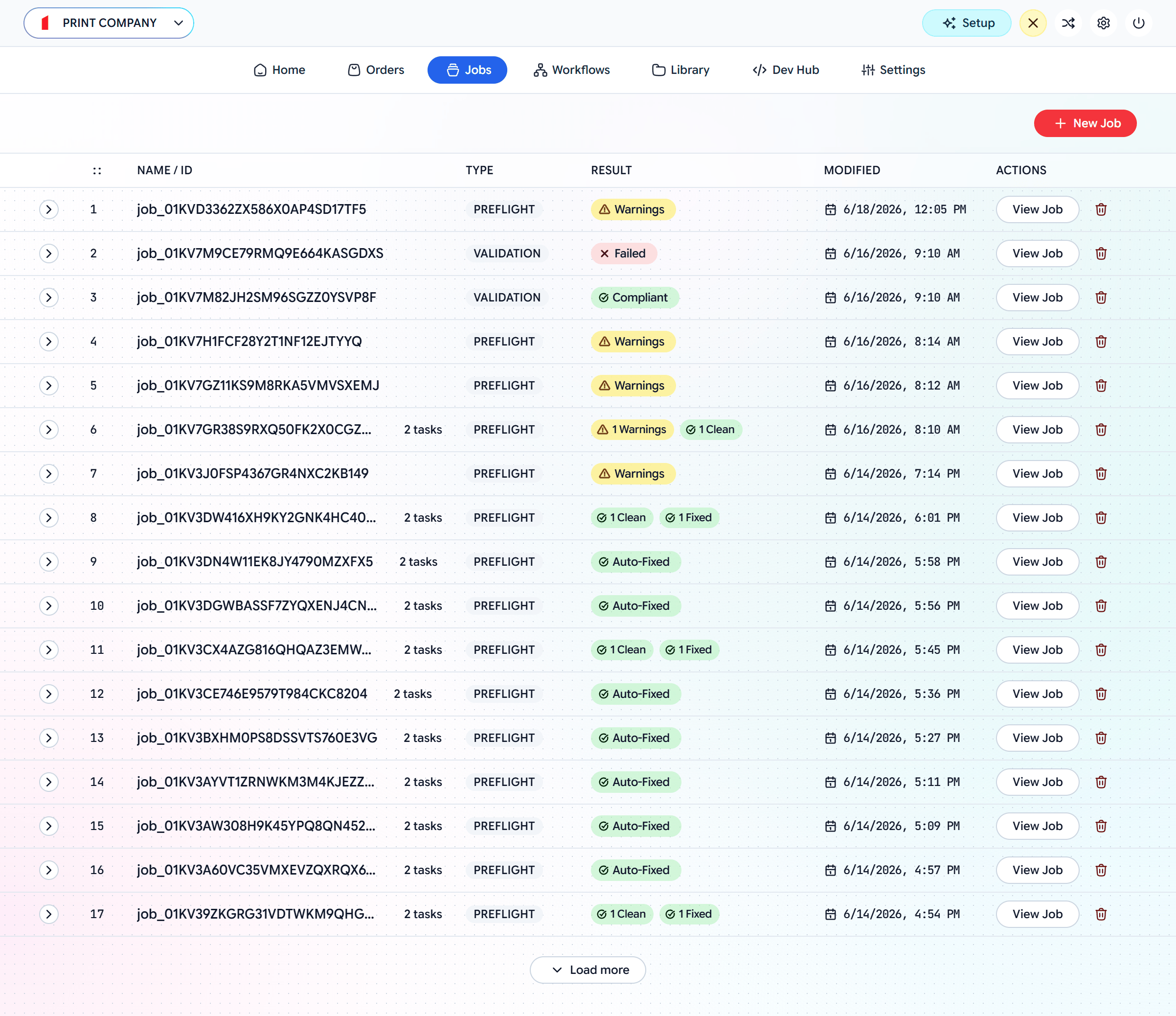
Each row shows the job's **type**, a **result**, and a **View Job** action with the output and report. Results read at a glance:
| Result | Meaning |
| ---------------------- | ---------------------------------------------- |
| **Clean / Compliant** | Passed with no issues. |
| **Auto-Fixed / Fixed** | Issues were found and corrected automatically. |
| **Warnings** | Proceeded, but with flagged issues. |
| **Failed** | Did not meet requirements. |
## Getting the output
Once a job has run, the fixed or optimized files are available in two places:
The validated job is attached to the order in your store's admin — **WooCommerce, OpenCart, PrestaShop, or Shopify**. Open the order to download the print-ready files.
Go to **[admin.filecheck.io/jobs](https://admin.filecheck.io/jobs)** (the **Jobs** tab), open any job, and download its output directly.
Integrating with your own backend instead of a plugin? Fetch the result server-side with your secret key — see [Verify jobs](/server/verify-jobs).
## Run a one-off job
You don't need a full workflow to check or transform a single file. Click **New Job** on the Jobs screen to run something immediately and get the result back:
## Reading a job
Each row shows the job's **type**, a **result**, and a **View Job** action with the output and report. Results read at a glance:
| Result | Meaning |
| ---------------------- | ---------------------------------------------- |
| **Clean / Compliant** | Passed with no issues. |
| **Auto-Fixed / Fixed** | Issues were found and corrected automatically. |
| **Warnings** | Proceeded, but with flagged issues. |
| **Failed** | Did not meet requirements. |
## Getting the output
Once a job has run, the fixed or optimized files are available in two places:
The validated job is attached to the order in your store's admin — **WooCommerce, OpenCart, PrestaShop, or Shopify**. Open the order to download the print-ready files.
Go to **[admin.filecheck.io/jobs](https://admin.filecheck.io/jobs)** (the **Jobs** tab), open any job, and download its output directly.
Integrating with your own backend instead of a plugin? Fetch the result server-side with your secret key — see [Verify jobs](/server/verify-jobs).
## Run a one-off job
You don't need a full workflow to check or transform a single file. Click **New Job** on the Jobs screen to run something immediately and get the result back:
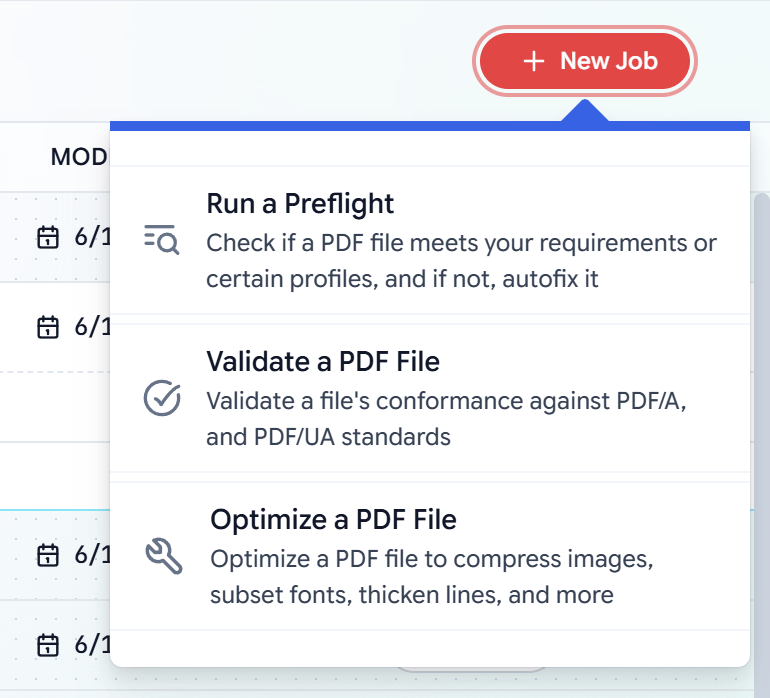 Check a PDF against your requirements or a chosen profile — and autofix it if it falls short.
Check a file's conformance to **PDF/A** or **PDF/UA** standards.
Apply an [Optimization Preset](/configuration/presets) — compress images, subset fonts, thicken lines, and more.
One-off jobs are the quickest way to spot-check a customer file, sanity-test a new profile, or optimize a single PDF — no workflow setup required.
Check a PDF against your requirements or a chosen profile — and autofix it if it falls short.
Check a file's conformance to **PDF/A** or **PDF/UA** standards.
Apply an [Optimization Preset](/configuration/presets) — compress images, subset fonts, thicken lines, and more.
One-off jobs are the quickest way to spot-check a customer file, sanity-test a new profile, or optimize a single PDF — no workflow setup required.