

Create one
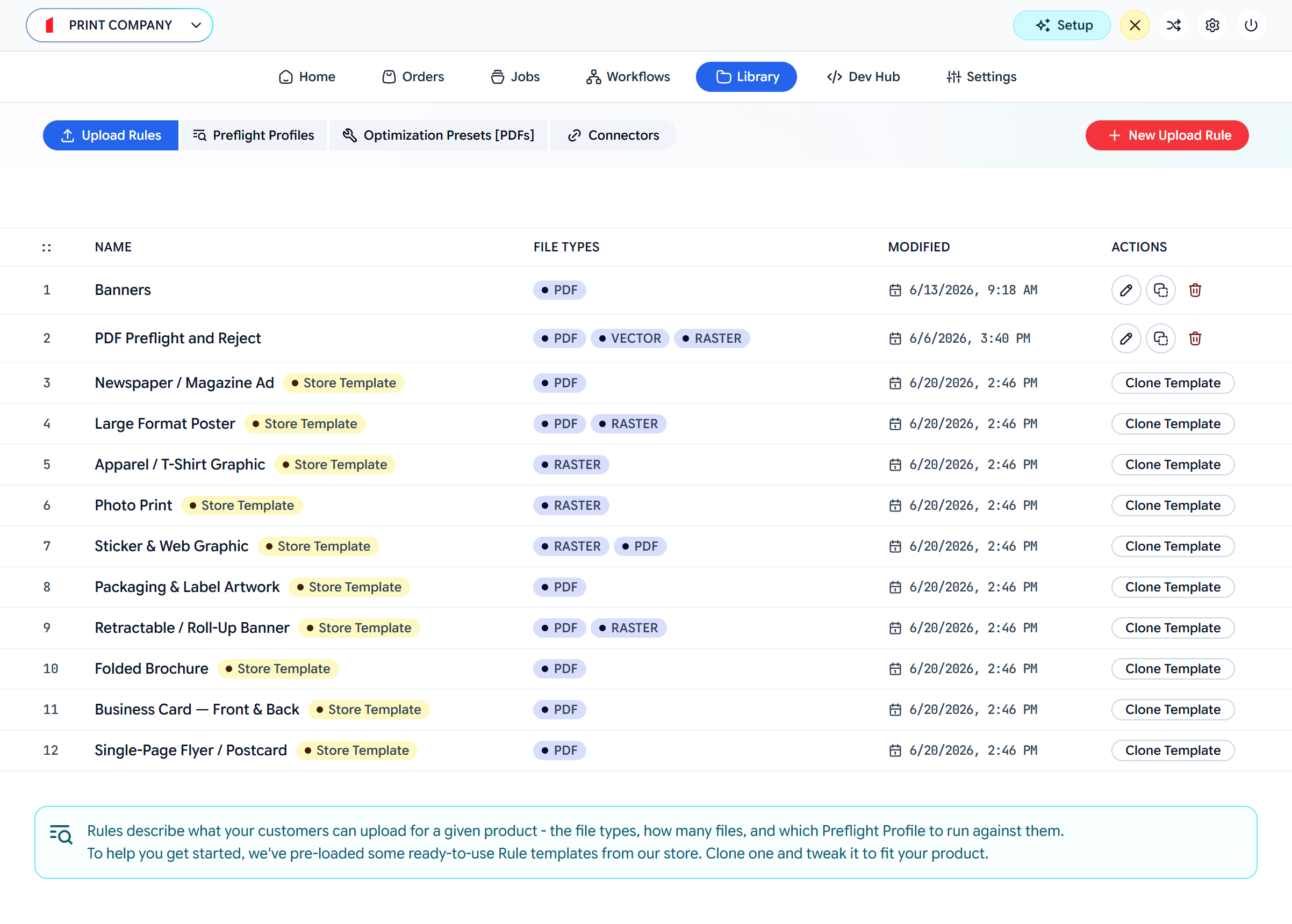
Open the Library
Go to Library → Upload Rules. Clone a template that’s close to your product, or click New Upload Rule.
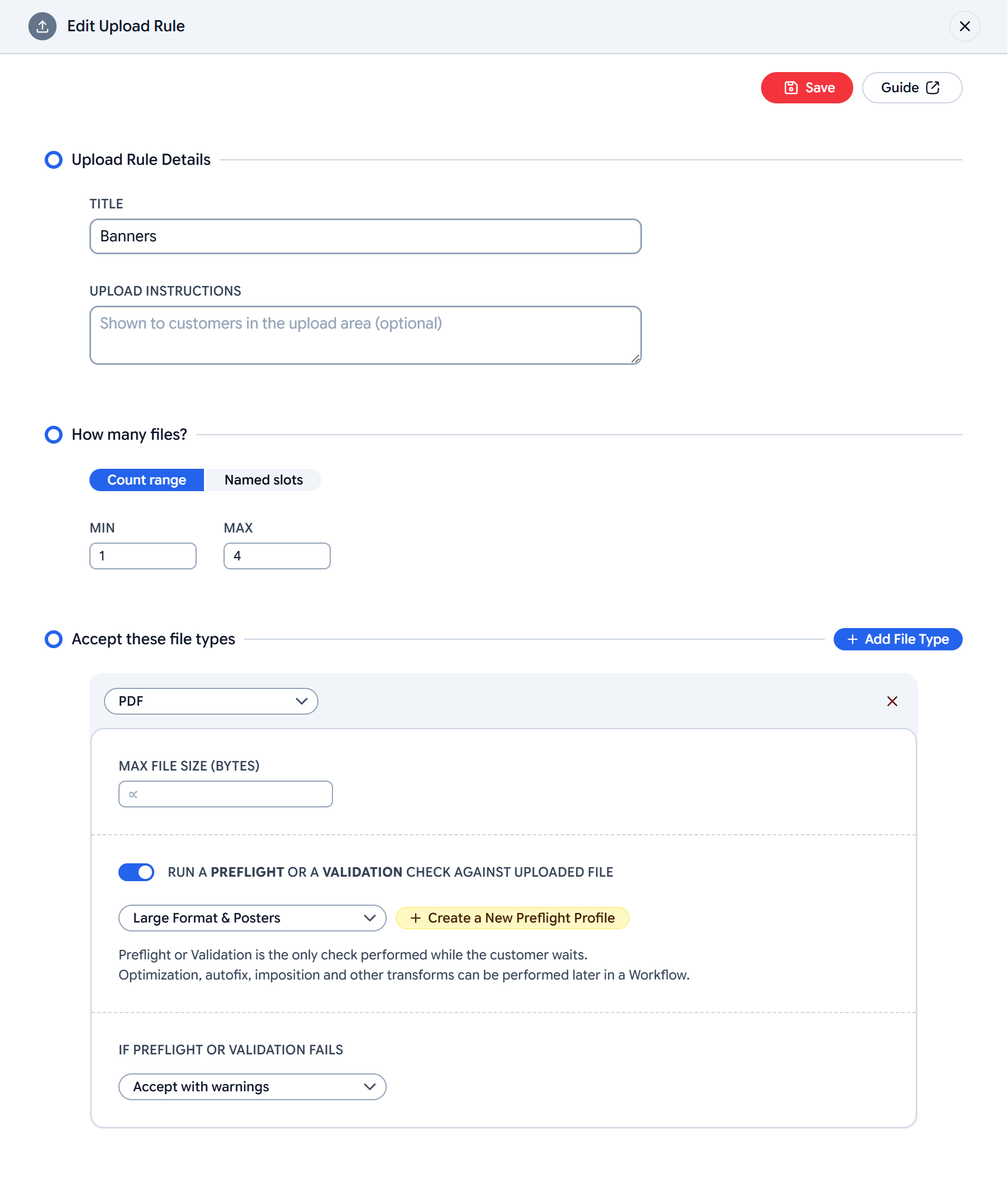
Name it and add instructions
Give the rule a clear title. The optional upload instructions are shown to customers in the upload area.
Accept file types
Add each file type you accept, with an optional max size and an optional check (below).
Cardinality: how many files
Cardinality is how many files the rule requires and allows. Two modes:Count range
A MIN and MAX — for example 1–1 for a single artwork, or 1–4 to allow up to four. The customer must provide at least MIN before the job can proceed.
Named slots
A defined role per file — for example Front and Back for a double-sided card. Each slot is its own labelled drop target.
Accepted file types
Click Add File Type for each type you accept (PDF, PNG, JPG…), and optionally set a max file size. For each type you can decide whether — and how — to check the file.Preflight or validation
Toggle Run a preflight or a validation check against uploaded file, then pick what runs. This is the only check performed while the customer waits, so it stays fast; heavier transforms happen later in the Workflow.Preflight against a Profile
Choose a Preflight Profile — a PDF type lists PDF profiles, a raster type lists Raster profiles. The file is checked against that profile’s checks.
Validation against a standard
Choose a conformance standard instead — PDF/A (1a–4f) or PDF/UA (accessibility). The file is validated for conformance rather than checked against your custom profile.
Preflight and validation are mutually exclusive per file type — you pick one. Only PDF and raster types can be checked; other types (vector, office) are converted to PDF at intake and processed downstream.
If the check fails
Set the onFail policy per file type:| Policy | Result |
|---|---|
| Reject | The file is blocked; the customer can’t proceed until it passes. |
| Accept with warnings | The file proceeds, flagged with warnings. |
| Manual review | The file is held for an admin to review before it proceeds. |
canProceed flag your store reads. See Jobs.
Next: add this Rule to a Workflow
Assign the rule at a workflow’s intake stage and define the processing that follows.